
Viewing Pictures on a TV (HDMI)
Photos and movies can be viewed on a high-definition TV connected directly to the camera by means of an HDMI cable.
For information on output signal setting, see “External Monitor Display Options (HDMI Settings)”.
Connecting the Camera to a TV
Connect the camera using an HDMI cable.
-
After confirming that the camera is off, connect it to the TV using an HDMI cable.
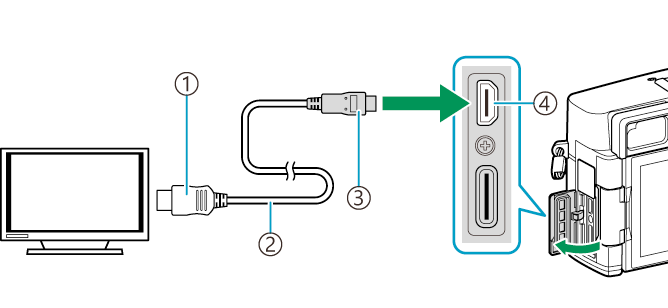
- HDMI connector
- HDMI cable (sold separately)
- HDMI connector (Type D)
- HDMI connector
-
Switch the TV to HDMI input and turn the camera on.
- The TV will show the content on the camera monitor. Press the q button to view pictures.
- For information on switching to HDMI input, see the manual provided with the TV.
- Depending on TV settings, the image may be cropped and some indicators may not be visible.
- HDMI cannot be used while the camera is connected to a computer via USB.
- If [Record] is selected for [nHDMI Output] > [Output Mode], the signal will be output at the current movie frame size. No image will be displayed if the TV does not support the selected frame size.
- If [4K] or [C4K] is selected, 1080p priority format will be used during still photography.