
Playback Using Touch Controls
Use touch controls to zoom pictures in and out, scroll pictures, or choose the picture displayed.
- Do not tap the display with your fingernails or other sharp objects.
- Gloves or monitor covers may interfere with touch screen operation.
Full-frame playback
Displaying the previous or next image
Slide your finger to the left to view the next image, and right to view the previous image.
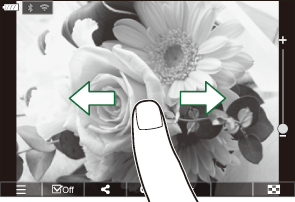
Magnify
- Lightly tap the screen to display the slider and P.
- Lightly tap the screen twice to magnify the image at the ratio specified in [q8Default Setting].
Slide the bar up or down to zoom in or out.
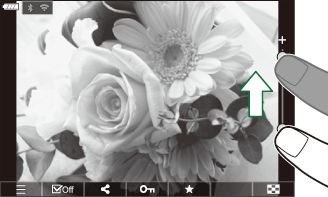
- Slide your finger to scroll the display when the picture is zoomed in.
- Tap P to display index playback. Tap L for calendar playback.
Movie playback
- Tap B to begin playback.
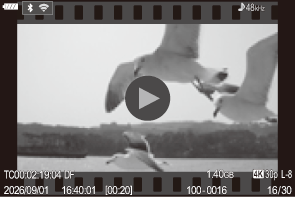
- Tap the lower part of the screen to display the control bar which allows you to end playback and change the playback volume.
- Tap the center of the screen to pause playback. Tap again to resume playback.
- By sliding the bar at the bottom of the screen during playback pause, you can change the position from which the movie will be played when playback is resumed.
- Tap X to end playback.
Index/Calendar playback
Displaying the previous or next page
Slide your finger up to view the next page, and down to view the previous page.
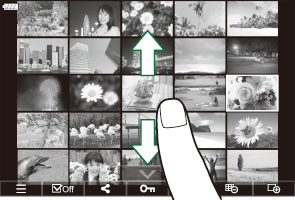
- The touch control menu will be displayed when you tap U during index playback. Tap L or M to switch the number of images displayed. g “Configuring the index display (G Settings)”
- Tap M several times to return to single-frame playback.
Viewing images
- Tap an image to view it full frame.
Other functions
Lightly tap the screen during single-frame playback or tap U during index playback to display the touch menu. You can then perform the desired operation by tapping the icons in the touch menu.
| 8 | The playback direct menu will be displayed. g “Watching movies”, “Rotating Pictures (Rotate)”, “Deleting Pictures (Erase)”, “Selecting Pictures for Sharing (Share Order)”, “Print order”, “Adding Audio to Pictures (c)”, “Retouching RAW Pictures (RAW Data Edit)”, “Retouching JPEG Pictures (JPEG Edit)”, “Combining Pictures (Image Overlay)”, “Trimming movies (Movie Trimming)”, “Creating Movie Stills (In-Movie Image Capture)” |
|---|---|
| 4 | Select an image. You can select multiple images and delete them collectively. g “Selecting Multiple Pictures (Share Order Selected, Rating Selected, 0, Erase Selected)” |
| 9 | Images you want to share with a smartphone can be set. g “Selecting Pictures for Sharing (Share Order)” |
| E | Assign rating stars to an image. g “Rating Pictures (Rating)” |
| 0 | Protects an image. g “Protecting Pictures (0)” |